Moving from several years of hardcore Ubuntu life to Mac is “a bit” challenging, but hey.. bring it on!
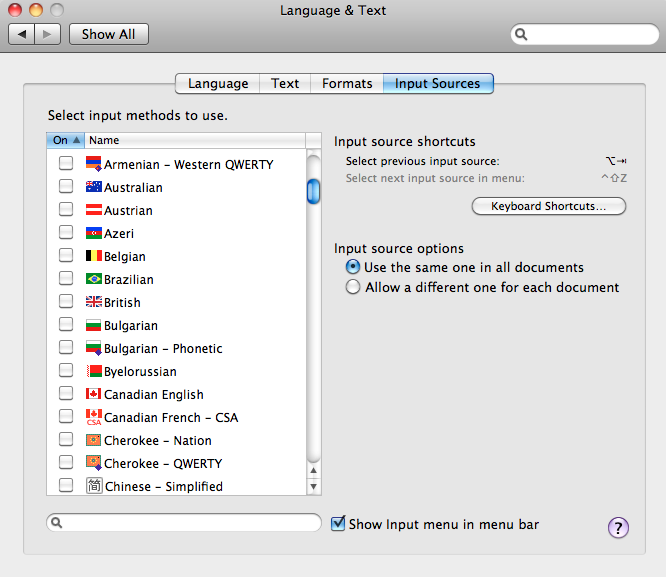
First thing that I needed to do is to be able to type.. Well yea, English is easy, since Mac does come with US keyboard that ironically comes with English letters. However what about people who are fortunate to know and love another language ( besides English )? Easy, you’d say: Mac has gazillions of different layouts ( a.k.a. “Input Sources” ) available:
Well, what if none of them suites me? Let’s take a look at the Russian Phonetic layout that comes with OS X:
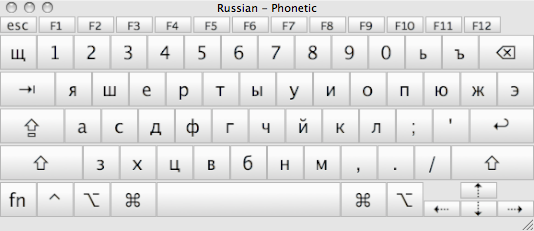
Maybe someone is ok with this layout, but many letters here are quite far from being “phonetic”. Leaving this be would result in many “typing in frustration” hours when you think you pressed “a”, but it was “b”, etc.. But don’t give up just yet, there is an awesome solution: Ukelete which is an excellent Unicode Keyboard Layout Editor for Mac OS X.
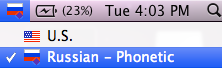
So switch to a “Russian Phonetic” layout:
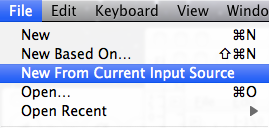
Now start Ukelete, go to “File –> New From Current Input Source”:
You should see the default layout in Ukelete window now:
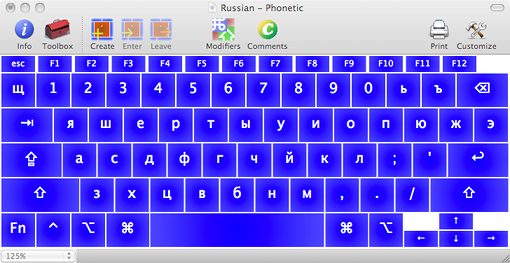
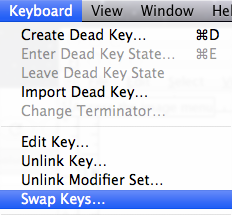
You are almost done.. Now just play a little “Swap Keys” game to get where you need to be:
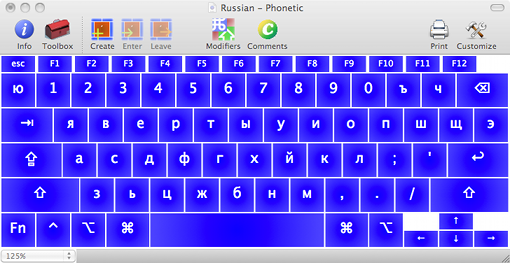
And get that final layout that you love:
Now save it as a “keyboard layout file”:
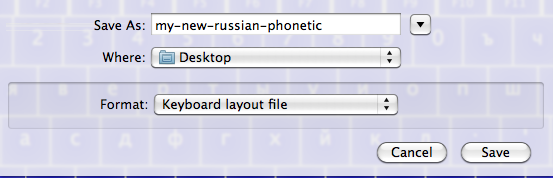
to “/Library/Keyboard Layouts/”.
Now go to the “System Preferences –> Language & Text –> Input Sources”, and you should see a new “Russian – Phonetic” layout:
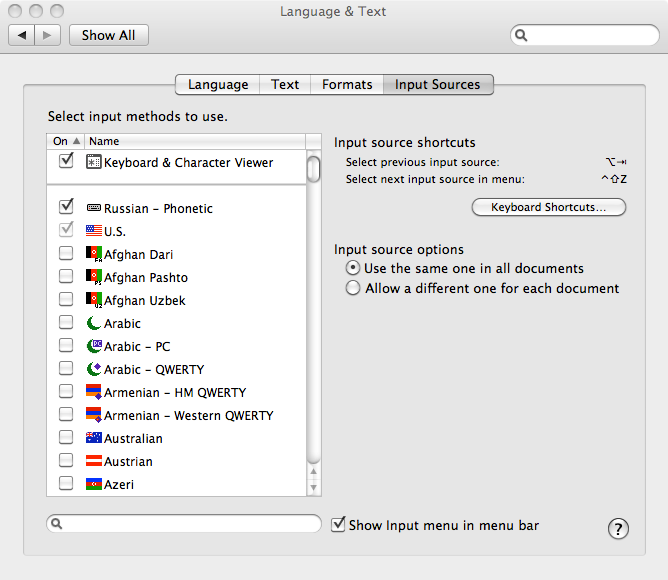
You are done
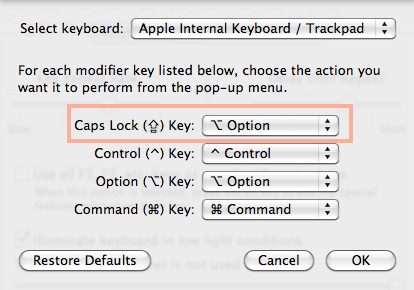
P.S. Another thing is to remap CapsLock to Option key via “System Preferences –> Keyboard –> Modifier Keys”:
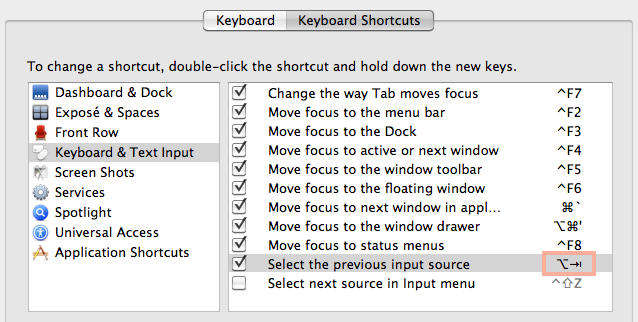
and change the shortcut to switch input sources ( keyboard layouts ) to “CapsLock + Tab”:
Happy typing!
Thank you
Thank you so much! you saved my life.
My Logitech K520 wireless keyboard somehow rendered wrong characters for keys º and <, no matter what keyboard layout I used.
Thank you for all your help. This has helped me tremendously! A word of caution though :
if youre using a smart mouse (such as logitech g700) or a smart keyboard (logitech g19) like me then when youre configuring your mac keyboard you need to plug them out of your computer.
only after that the program can read the ‘current input source’
ALSO
a more specific problem that ive solved is the Turkish version of the mac aluminum keyboard with numberpad (A1243, EMC no 2171) has an extra key positioned right of the left shift. When you change it to an american layout it becomes tilda. this is useful for changing that.
Firstly, thanks a lot, this is helpful!
Secondly, I just realized that Swap Keys has a bunch of undesirable effects. For example, if you swap the key under “w” and “v”, you will also swap Command-V and Command-W. It also affects all the other combinations, like Option-, etc.
So, I just ended up redoing my keyboard by double-clicking only on the keys I want to change, and pasting in the right value. To change the “Shift” state, I press “Shift” before double-clicking.
It might be a nice idea to update your tutorial with this information, because switching the Paste keyboard shortcut with the Close Window keyboard shortcut can be disorienting.
@Alexey,
“Command + W” and “Command + V” work for me with Russian and US layouts after the swap. Again, I have not swapped V and W, I swapped the Russian representations of V and W (e.g. Ж и В).
/Toly
I understood your instructions to mean “Use the ‘Swap Keys’” command in the menus. That command swaps the meaning of Command-V and Command-W if you swap V and W.
You might clarify that the right way to do it is:
1) Double-click on a key (possibly holding down shift)
2) Copy the value (Command-C)
3) Hit Escape to close the dialog
4) Double-click on the key where you want the value to go. Take care not to replace the previous value.
5) Now select the previous value, and cut (Command-X).
6) Go to step 3, and repeat with the new value.
Did every thing this article says, but default russian photetic keyboard didn’t change at all, tried it a several times (with restarts of course) but each time its a default layout.
Help with ideas please…
Greetings!
Having worked on PC and Windows for some 25 years, I am a complete novice in the Mac world.
So it was strange to learn for instance that Mac’s Russian keyboard is still far from the standard (“Russian Typewriter”). With the help of Ukelele though I have re-mapped the keyboard, but have not succeeded in activating it. As instructed, I have renamed it and saved initially on the desktop and then – at the “Library/Keyboard Layouts”. Have tried it a number of times but to no avail: the re-mapped keyboard does not appear in the “System Preferences->Language and Text->Input Source”.
Any suggestions please?
Regards,
Yuri
Oh thank you, you saved my life and because of you I could go home after my work <3
For people struggling, I had to save the layout to the desktop then move the file to the relevant folder through finder and authenticate the move. The folder was locked normally and ukelele didn’t seem to know how to deal with this.
Thank You! I had a swap issue with my Corsair Vengeance K90 and You help me!
This is a stupid question, but what’s Ukelete?
This is an excellent article (and an excellent software as well).
This is a must read for any developer on a mac (especially foreign keyboards) that wants to stop pulling hair.
Great job!
Thank you loads!
Ok I found the reference to ‘Ukelete’ confusing also. Here is what I found however: http://scripts.sil.org/cms/scripts/page.php?site_id=nrsi&id=ukelele
> Ukelele is a Unicode Keyboard Layout Editor for Mac OS X versions 10.2 and later…
Thanks a lot! This is exactly what I needed
I am having a problem with the Ukelele after having installed it (a German keyboard). It works fine with e-mails, Excel, on the web, writing this message, etc. But it simply will not work in Word. Nothing moves at all, not even the cursor. It does work in Word also, however, if I select the American English keyboard. But it will not work in Word using the German keyboard I installed. The problem is only with Word. Any suggestions?